No doubt you are already using MFA or 2FA (Two Factor Authentication) or 2SV (2-step verification) for Online Banking, Government Services and many other online services but did you know it can also be used to secure your personal Gmail email or Google account from hacking and Identity theft?
Some MFA apps are specific to the individual bank or company but there are two generic Authenticator Apps that you may be familiar with:
- Google Authenticator
- Microsoft Authenticator
The Google Authenticator App is required for Gmail or Google accounts and needs to be installed on your mobile phone to provide the second form of identification
Authenticator apps have mostly replaced Security-Tokens (security fobs), which you may still see being used today.

Turn on 2-Step Verification in Gmail/Google accounts
With 2-Step Verification, also called two-factor authentication (or MFA – Multifactor Authentication), you can add an extra layer of security to your account in case your password is stolen. After you set up 2-Step Verification, you can sign in to your account with:
- Your password
- Your phone
Allow 2-Step Verification
- Open your Google Account.
- In the navigation panel, select Security.
- Under “Signing in to Google,” select 2-Step Verification
Get started.
- Follow the on-screen steps.
Tip: If you use an account through your work, school, or other group, these steps might not work. If you can’t set up 2-Step Verification, contact your administrator for help.
Verify it’s you with a second step
After you turn on 2-Step Verification, you must complete a second step to verify it’s you when you sign in. To help protect your account, Google will ask that you complete a specific second step.
the Google Authenticator Apps resides on your Smart Phone (Android or Apple)
… and will either generate a random code or simply popup on your phone for an approval/ confirmation when you are trying to login to a secure site.
An alternative to an Authenticator Apps is to receive a SMS/Text message with a code, although this is not as secure as using an Authenticator app due to “SIM Jacking” or “Smishing” (SMS phishing)
Setting up verification on your Google Account
By default, 2-Step Verification is OFF … this screen should confirm it, However, if 2-Step verification is ON, you need not proceed further unless you wish to add another verification method such as Google Authenticator

Click on the > symbol as indicated above
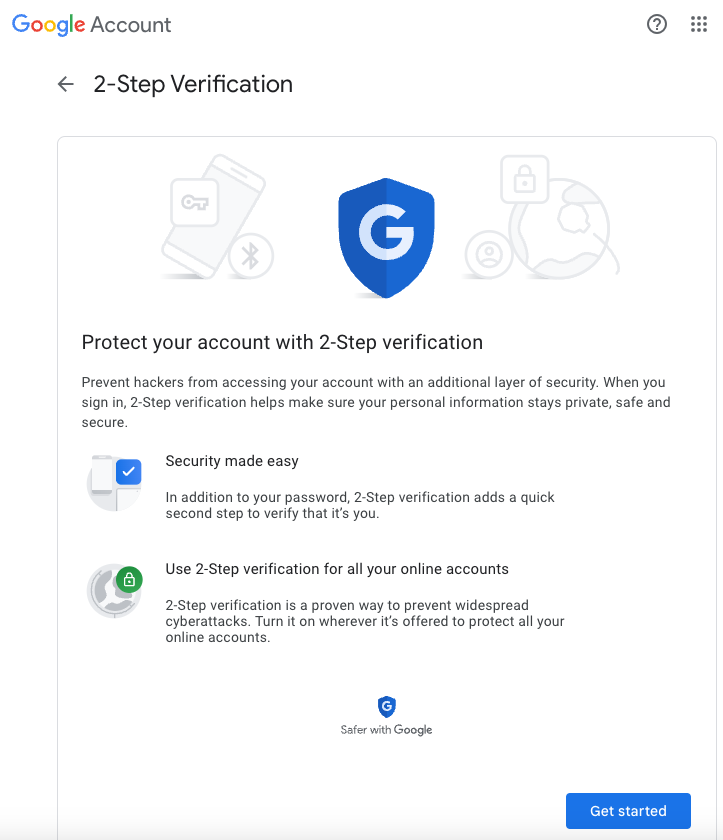
Click “Get started”


If you already have 2-Step you may see the above, click on “Show more options”

This will prompt you to action

You maybe prompted to add your phone number as a backup method of verification

Enter your phone number

Confirm you received a code by entering it here

This confirms the default 2 step methods have been setup, click “Turn On” and on the next page scroll down the options

Choose “Autheticator App” and click on the > symbol

you will now be prompted to install or setup the Google Authenticator App on your phone

Once installed, click on the “+” symbol in the applicator app and scan the QR code on the cpmputer screen

The Authenticator App on your phone will give you a code or simply ask you to confirm you are signing in

The above screen confirms you have setup the Google Authenticator app
Related Posts
-
Windows 11 Tablet replacements
If you have an older Tablet with or without a keyboard running Windows 10 that cannot be upgraded to Windows 11, You have 4 replacement options. Windows 11/Android Tablets There are many, many Windows 11 tablets available at varying pricepoint. Just be careful to choose one that suits your needs. Some will run full Microsoft…
-
Can I upgrade to Windows 11?
PC’s, Laptops and Devices running Windows 10 have not been getting security updates since October 2025, when support ended. 28% of Australian Windows users are still using Windows 10 in January 2026 (Down from 36% in October) Is your device eligible for a free update to Windows 11? What will likely happen the longer you…
-
How to stop email going to spam or junk
Businesses! are your employees and customers not getting your emails or they go to their spam/junk folder? There is a solution. Does your business have issues where your outgoing emails are going to customers or employees Junk or spam folders instead of their Inbox? The issue can happen whether you own your own domain or…
Does your business send email to Gmail or Yahoo accounts?
Need More Help?
iTechWA offer paid consultancy services, onsite or remotely. Our rates can be found here. For help or further assistance, please contact us here.
iTechWA are experts in everything Microsoft, Apple, Ubiquiti, Sonos and Starlink.
For further help or assistance, contact us here or refer to vendor support websites such as Microsoft and Apple