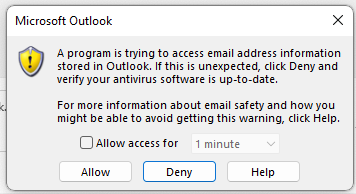
Having issues adding a Bigpond email account to Outlook 365 App on Windows 10,11 or Mac?.

The Telstra website, Telstra FAQ and Telstra Guides are hopelessly outdated, all referring to old outlook versions. And when you call their technicians they often offer completely incorrect information.
Try the following 2 solutions
- Solution 1 – Use an App Specific Password
- Solution 2 – Check Windows Updates
- Solution 3 – Check Microsoft Office Updates
- Solution 4 – Turn Off Wi-Fi !!
Solution 1 – Use an App Specific Password
What Telstra does not tell you ANYWHERE on it’s site, is that you now need to use an “APP SPECIFIC PASSWORD” in place of your usual Telstra/Bigpond login password in order to add your Bigpond email address to Outlook on either Windows or Mac
Trying to add your Bigpond account using your Bigpond password, throws an error:

Step 1 – Generate App specific password by logging into Telstra/Bigpond Webmail
Login to Telstra Webmail on a Browser
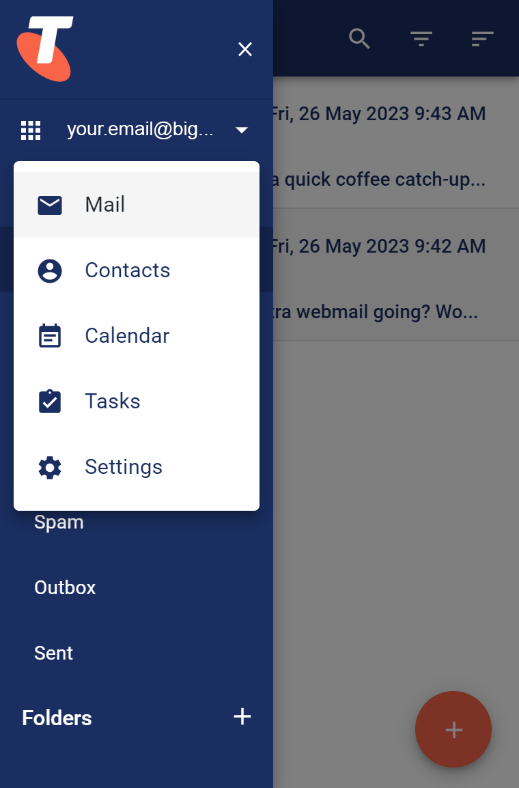
- Click on the nine-dots in the top left menu and select “Settings”
- Click on “Accounts”
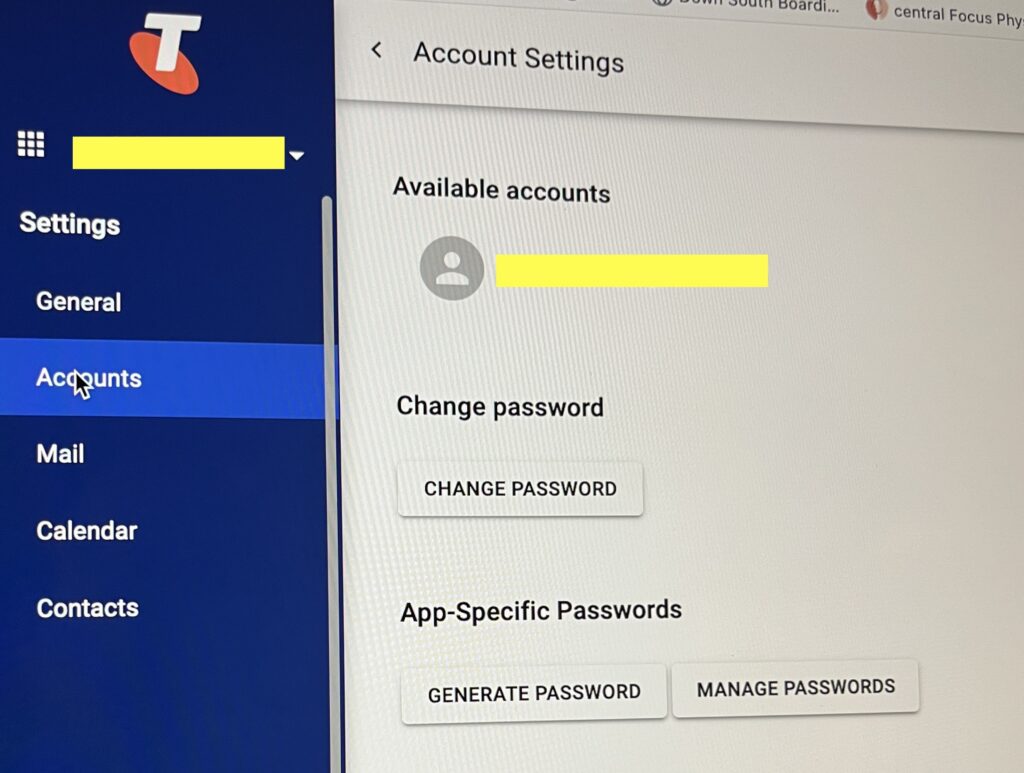
- Look for “App Specific Passwords” and click “Generate Password” giving it a name such as “Outlook Password”
- Make note or the very unfriendly computer generated password. We suggest using a copy and paste technique as the password will not have to be re-entered too often.

- If you have any old Bigpond accounts in Outlook App (Program), remove them first.
- Create new account in Outlook App (Program)
- When prompted for a Password in Outlook, use the “App specific password” generated from Telstra Webmail (see above)
Once done click “Next” and if the passwords was added correctly, the account will be added to your Outlook App (Program)
Close Outlook and reopen Outlook for the new account to appear
Solution 2 – Check Windows Updates
Follow this guide > Is Windows fully updated?
If you are still running Windows 10, the updates maybe fully updated but there is a bug that has only been addressed in Windows 11.
Update to Windows 11 and try again.
However, goto Solution 3 first and try the suggested fix.
- Fix 2.1 – Look for Account Errors
- Fix 2.2 – Run Updates
- Fix 2.3 – Download Office from Microsoft Account
- Fix 2.4 – Repair or Reinstall the installed Office App
- Fix 2.5 – Purchase latest version of Office (Microsoft 365 or Office 2024)
Solution 3 – Check Office Updates
If you followed the instructions in Solutions 2 above, running Windows updates “should” also update Microsoft Office, including Outlook and other Microsoft Office products, but it seems it does not always work!!!
So to force Microsoft Office (Outlook, Word, excel etc) to update to the latest version and to fix problems that have failed every other solution, follow this procedure.
Open Outlook
Click on File > Office Account and look at the information on the right hand side and the box called “Update Options”

Select “Update Now”

The update program will try and close Outlook and any Word or Excel programs open, and it will then run the updated program. After a few minutes you will see the following message.

Now try opening Outlook and adding the account again
Solution 4 – Turn Off Wi-fi !!!
Don’t ask me why this sometimes works…. it just does!!!!
If all else has failed, the issue could be that something in your wi-fi network is blocking the connection.
Try disconnecting your computer from the current wi-fi network and either connecting to another one or tether to your phones hot-spot with using the mobile network. ( Make sure your phone is not connected to your wi-fi)
Conclusion
Now, think about transitioning from bigpond.com to a free outlook.com account as Bigpond is not going to be around much longer.
Need some help? We can help you here
If you are a business using a Telstra or Bigpond account. Time to get off it and setup your own domain. We can help you there also.
Need More Help?
iTechWA offer paid consultancy services, onsite or remotely. Our rates can be found here. For help or further assistance, please contact us here.
iTechWA are experts in everything Microsoft, Apple, Ubiquiti, Sonos and Starlink.
For further help or assistance, contact us here or refer to vendor support websites such as Microsoft and Apple