Having email issues on your iPhone? using Mail for your Bigpond.com account?
It seems that Telstra are actively trying to get rid of Bigpond email users by making it increasing difficult for them to use their email accounts. Especially on devices such as smartphones and tablets
If you have iPhone and your email has stopped working on that device, this is how to fix it as of June 2025
The Telstra website, Telstra FAQ and Telstra Guides are hopelessly outdated, all referring to old iPhone models and old OS versions.
What Telstra does not tell you ANYWHERE on it’s site, is that you now need to use an “APP SPECIFIC PASSWORD” in place of your usual Telstra/Bigpond login password.
Trying to add your Bigpond account using your Bigpond password, throws the following error:
“No Password provided for ‘Bigpond’. Please go to mail account settings and enter a password”
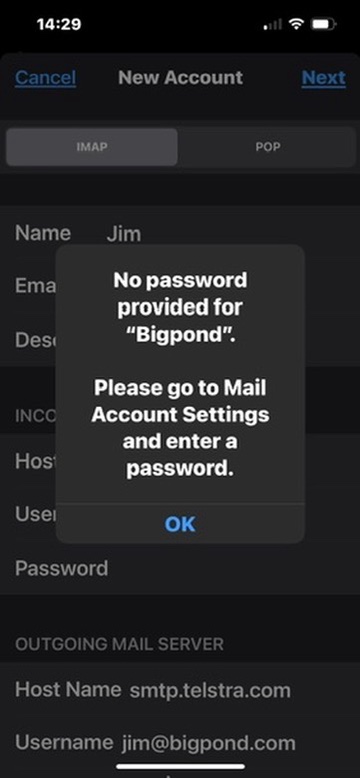
…and entering your normal password in the password boxes of “Incoming Mail Server” and “Outgoing mail Server“, returns the same error
Solution
Step 1
Remove the Bigpond email account from Apple mail
Goto Settings > Apps > Mail > Accounts … select the Bigpond email
… scroll to bottom of the page and hit “Delete Account”
Step 2
Add back the email account
Goto Settings > Apps> Mail > Accounts > Add Account > Other > Add Mail Account
Email > _________@bigpond.com …. @bigpond.net.au etc.
Password > Generate App Specific password as follows
Generate App specific password by logging into Telstra/Bigpond Webmail
Login to Telstra Webmail on your iPad browser such as Safari
Goto https://email.telstra.com
Login using your existing passwordor click “Forgot Telstra email” and follow the prompts if it does not work
Once logged into your mail
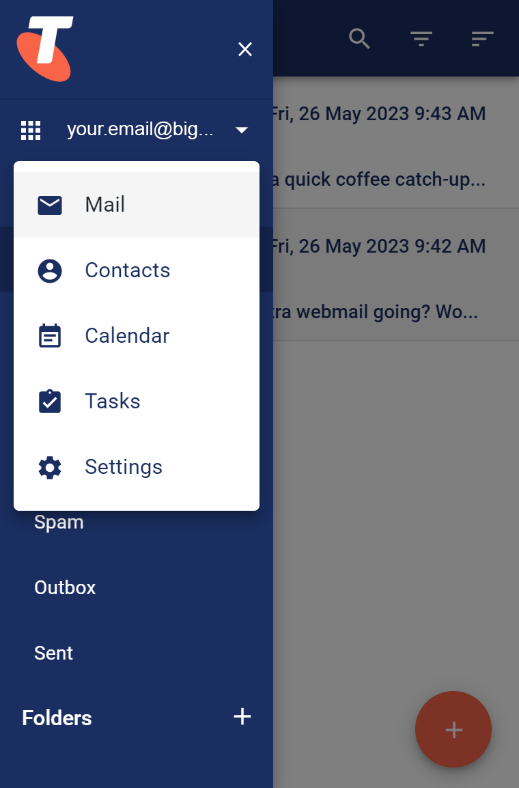
- Click on the nine-dots in the top left menu and select “Settings”
- Click on “Accounts”
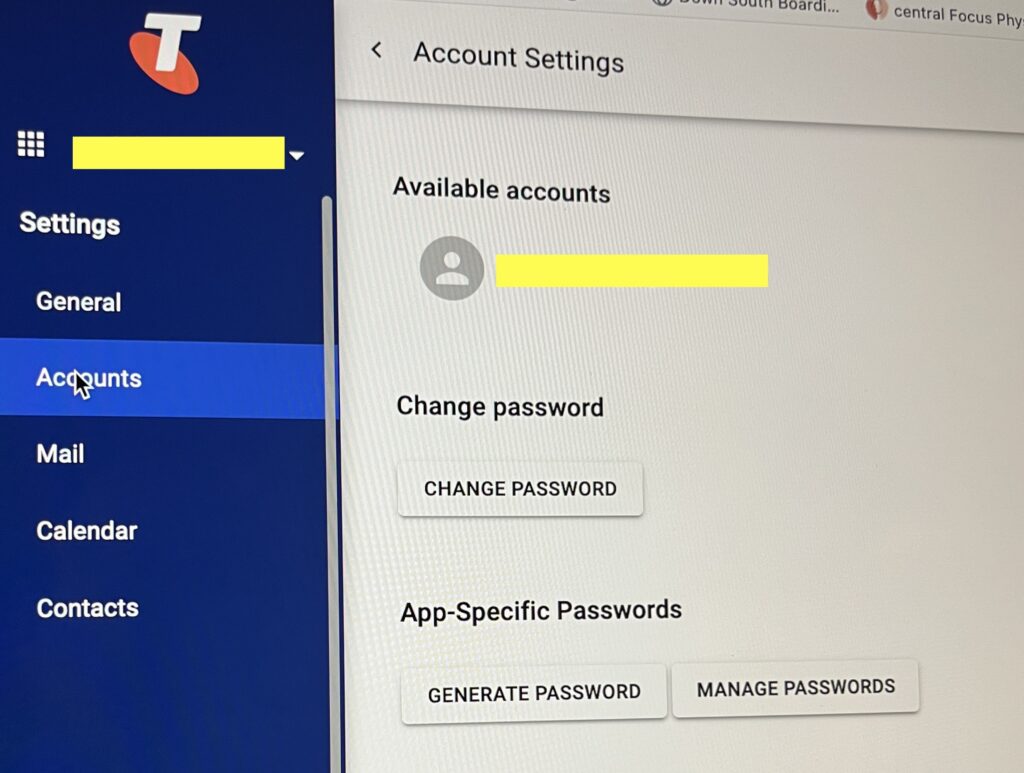
- Look for “App Specific Passwords” and click “Generate Password” giving it a name such as “iphone Password”
- Copy the very long and unfriendly computer generated password or write it down
- You will need to add this to your phone at least twice. It is advisable to take a photo of the password.

Once the Error screen Appears like this
…click “OK” now enter the long App specific passwords from Telstra webmail (see above) in both the Incoming and Outgoing Password fields.
Paste the password or type the password carefully and exactly as shown on the website. … in the IMAP and SMTP sections.
Once done click “Next” and if the passwords were added correctly, the account will be added to your iPad.
Now, think about transitioning from bigpond.com to a free outlook.com account as Bigpond is not going to be around much longer.
Need More Help?
Need further assistance? iTech WA offers paid onsite and remote IT support. See our rates or contact John to discuss your requirements.