

We show you 5 ways to get your printer (be it new or old) to talk to Windows 11 including scanning if it is a MFP (Multi-Function Printer)
5 Ways to fix your Windows Printer/Scanner Issues
- Install/Reinstall Printer in Windows Settings
- Install the latest software/app to match your printer
- Check for Windows and device updates
- Test Printer with Cable and/or Wi-Fi
- Run the Windows Printer troubleshooter
Most printer connectivity issues occur when:
- A new printer is being setup/installed
- You are setting up a New Windows 11 computer
- You have upgraded from Windows 10 to Windows 11
- You are still running Windows 10 or Windows 7
- There has recently been a major Windows update
- A new modem/router has been installed
1. Install/Reinstall Printer in Windows Settings
On your Windows device goto Settings > Bluetooth & devices > Printers & scanners
… and you should see something like this, with your printer being listed on the right hand side

Just because the printer we are trying to fix appears on the right, does not mean it has been setup correctly.
Remove all Printers & Scanners
Click the “>” next to each listed devices and hit “Remove” for all items until the list is empty. If some items refuse to be removed, restart the device and repeat the process if still showing. If this does not remove the printer, run the “Windows Printer Troubleshooter” as detailed in Section 5 below
Once all old printers and scanners have been removed you should simply see a blue button saying “Add device”
This will allow Windows to try and detect and install the correct driver for Your Printer/MFP.

If your printer is found, click on “Add device”
Once added, select the Printer and the option beneath it “Print Test Page”. If the test works we can assume the connection has been established.
If Windows installs your printer correctly without the option to scan (if an MFP), then you may need to set the printer up using the printer manufactures software, drivers or app as discussed in section 2 below)
2. Install the latest software/app to match your printer
If your printer fails to install correctly or is missing the scanner capability, we suggest installing the printer specific app or software in the following manner.
The safest way to install the correct and genuine printer software in Windows 11 is to use the Microsoft Store, which appears on your tool bar by default

If your Printers Manufacturer is one of the following, you can install missing printer drivers/utilities in one of two ways:
In The Microsoft Store, search for your Printer Manufacturers name such as “HP”, “EPSON” etc. Look for the Printer App associated with your printer manufacturer
- “HP” – “HP Smart App”
- “EPSON” – “Epson Print and Scan App”
- “CANON” – “Canon Print App”
- “BROTHER” – “Brother Print Support App”
Ensure the App you are installing is from the Printer Manufacturer and is NOT from a 3rd Party
Install the App and follow the manufacturers instructions
If an app for the printer you are configuring cannot be found in the “Microsoft Store”, you will need to do the following
Carefully make an internet browser search for the manufacturers official website, example
- “HP” – https://www.hp.com
- “EPSON” – https://epson.com
- “CANON” – https://www.canon.com.au/
- “BROTHER” – https://www.brother.com.au/
Be very careful here that you do not click on a 3rd party website as this is often how scammers trick you into installing malware or get access to your device.
Once on the site, look for the “Support” section or “Downloads” or search the site using the printer model number.
Download the latest printer/scanner software and drivers that match your operating system (Windows 11,10, 7 etc) and run the software.
Scanner Issues
If your issue is that you can print but cannot scan…. try installing the “Windows Scan” app through the Microsoft Store

This replaces having to hit the “Scan” button on your printer and seems to be how Windows 11 prefers you to scan documents to your device
Commercial Printer/Copier setup/troubleshooting
Commercial Printer/Scanner MFP’s from companies such as “Fuji Xerox”, “Kyocera”, “Lexmark” etc. Should be correctly setup, configured and maintained by the company they were purchased from.

They are often setup using a “Fixed IP” address.
This can usually be found by running a Printer Setup or Network setup report from the Printer itself.
And accessing that fixed IP address from a web browser will often give you access to the devices web configuration page. However, they often required a login name and password which is sometimes as simle as ‘Admin” and “Admin”.
A web search for the default-password can often give you access.
3. Check for Windows and device updates
Printer Driver issues can often be resolved through Windows Updates, as in the following 2 ways
3.1 Goto Settings > Windows Update … and install any pending updates and then reboot, then
3.2 Goto Settings > Windows Update > Advanced Options > Optional Updates and select any Windows Updates or Driver updates and click “Download and Install”

Restart the device and test the printer issues and see if they have now been fixed. If not, proceed to Section 4
4. Test Printer with Cable and/or Wi-Fi
If the Printer cannot be detected, it could be a network error. This often happens when your device and the printer are not on the same network, especially if the printer is a Wi-Fi only printer.
Usually the Manufacturers App as detailed above, will resolved the issue. However, some older printers may need to be manually connected to the wifi network by typing the Wi-Fi network password into the devices.
Printers will often have an LCD panel or button or indicator light to indicate if they are connected to Wifi or not.
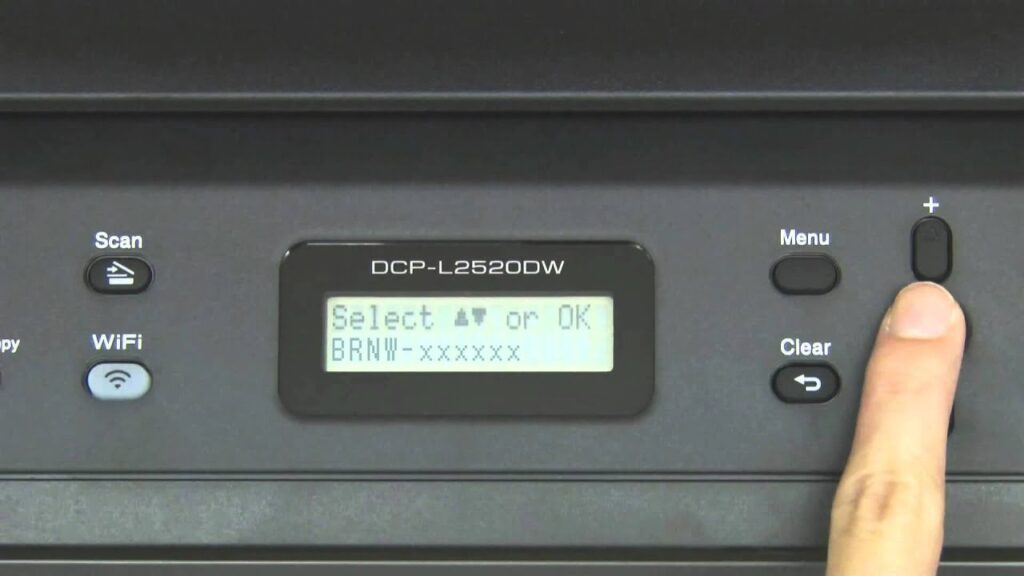
If your printer has a USB or Network cable port, try connecting using a cable rather than over Wifi.
Other possible fixes include turning off “Band steering” and connecting to the 2.4 or 5GHz Wi-Fi networks.
5. Run the Windows Printer troubleshooter
Windows 10 and 11 include some sophisticated diagnostic tools built in, they are called “Troubleshooters”
Goto Settings > System > Troubleshoot > Other Troubleshooters > Printer > Run
And follow the instructions and allow Windows to run diagnostics. If this and all the above fixes do not work, we suggest using our paid services or contact the Printer Manufacturer and send them a message or utilise their troubleshooting services.
Need More Help?
Need further assistance? iTech WA offers paid onsite and remote IT support. See our rates or contact John to discuss your requirements.

